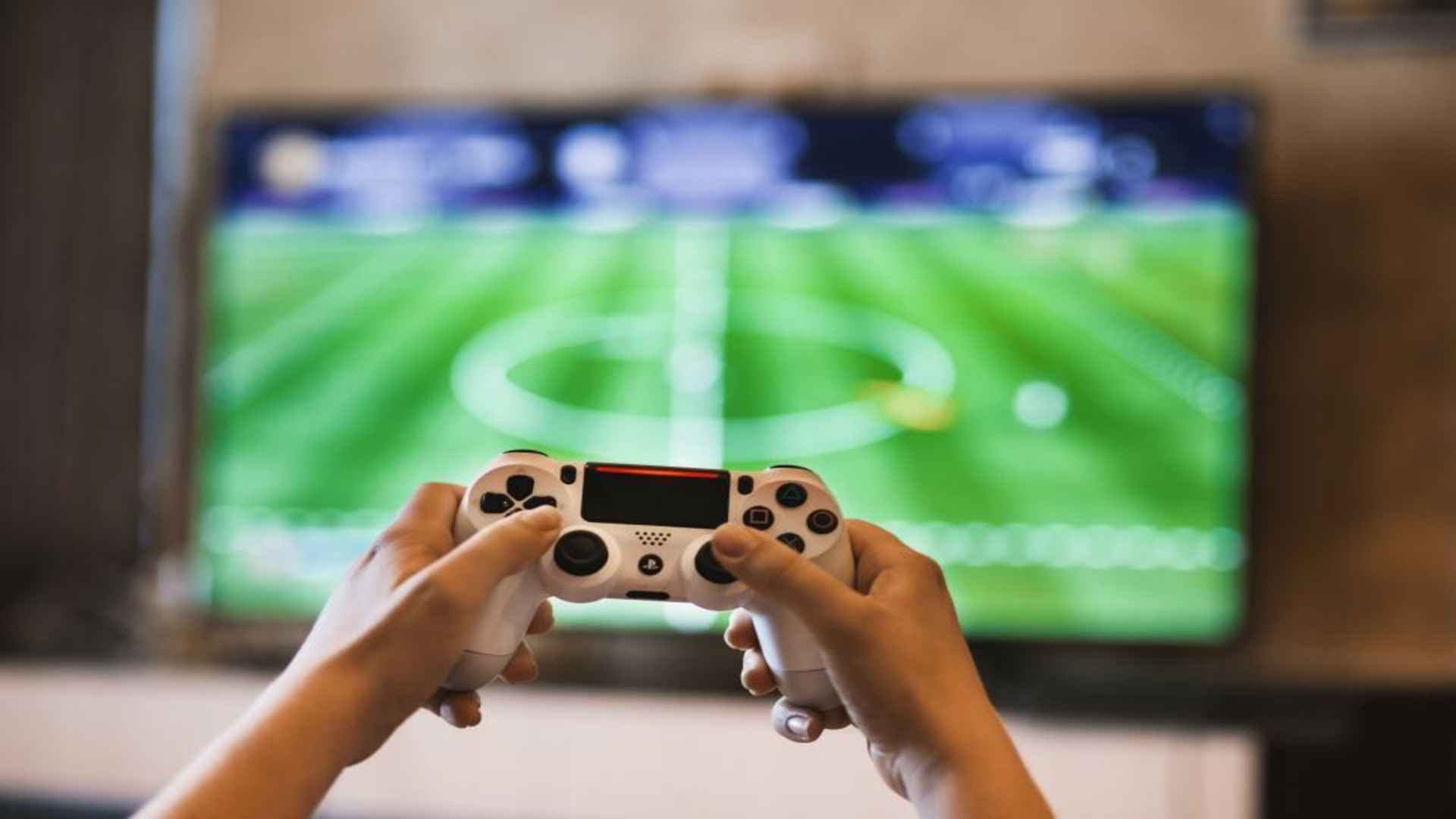
Setting up a PlayStation 5 bundle that includes two DualSense controllers allows you to enjoy shared gaming sessions straight out of the box. Connecting multiple gamepads ensures that family members and friends can jump into local cooperative or head-to-head matches without delay. Staying informed through daily gaming news can also help you discover the latest couch co-op titles available for the platform.
Initial Setup and Syncing the Primary Controller
Before bringing a second player into the action, you must establish the primary setup for your PS5 console. Connect the main console to your display via HDMI, power it on, and plug the first DualSense controller into the front USB port using the included cable. Pressing the PS button pairs the controller, allowing you to complete screen calibration and system configuration steps.
Once the initial account sign-in is finished, you can disconnect the primary controller from the cable to switch to wireless operation. The system will remember this controller as the main input device for navigating the home screen and primary user settings.
Connecting and Assigning the Second DualSense Controller
Adding the second gamepad to your PS5 requires a brief pairing process similar to the first device. Plug the second DualSense controller into a spare USB port on the console using a compatible USB-C cable. Press the central PS button on the second controller until the light bar begins to glow, confirming the hardware connection.
A user selection screen will prompt you to assign the second controller to an existing profile or a temporary guest account. Assigning the controller to a dedicated secondary account saves individual player progress and trophy achievements during local multiplayer sessions.
Configuring Guest Accounts and Profiles for Local Play
If a secondary user does not have a permanent PlayStation Network account, you can quickly set up a Quick Play guest profile. Guest accounts permit instant participation in local matches without requiring lengthy login procedures or personal email verification. However, keep in mind that progress made on a temporary guest profile will erase once the console powers down.
Creating permanent local user profiles for frequent gaming partners is recommended for long-term play. This ensures controller settings, button remapping, and audio preferences remain saved for future gaming sessions.
Best Local Multiplayer Games and Shared Screen Modes
The PlayStation 5 library features an impressive array of titles designed specifically around couch co-op and split-screen mechanics. Cooperative adventures like It Takes Two offer dedicated two-player campaigns that rely heavily on teamwork and precise communication. Sports titles and fighting games also provide intense competitive environments for side-by-side gameplay.
Many modern titles allow players to adjust split-screen display options within the in-game settings menu. Customizing display orientation and audio balance helps each player maintain clear visibility and sound direction during fast-paced matches.